
Many users miss out on potent features tucked away in their phone settings. Customizing notifications can help maintain focus, as dark mode reduces eye strain, especially in dim environments. Managing app permissions bolsters privacy, and utilizing battery saver modes extends device longevity. Accessibility options enable all users with unique needs. By enhancing their phone experience, they can boost productivity and comfort. Discovering these gems can lead to even more improvements in how one interacts with their device.
Article Highlights
- Customize notification prioritization to focus on alerts that truly matter, minimizing distractions during work or study sessions.
- Enable dark mode to reduce eye strain and conserve battery life, especially beneficial in low-light environments.
- Regularly manage app permissions to protect your privacy by limiting location access and controlling background data sharing.
- Utilize battery saver modes to extend battery life by restricting resource-heavy apps and adjusting screen settings.
- Explore accessibility options like voice commands and text-to-speech to enhance usability and promote inclusivity in device interaction.
Customizing Notifications for Better Focus
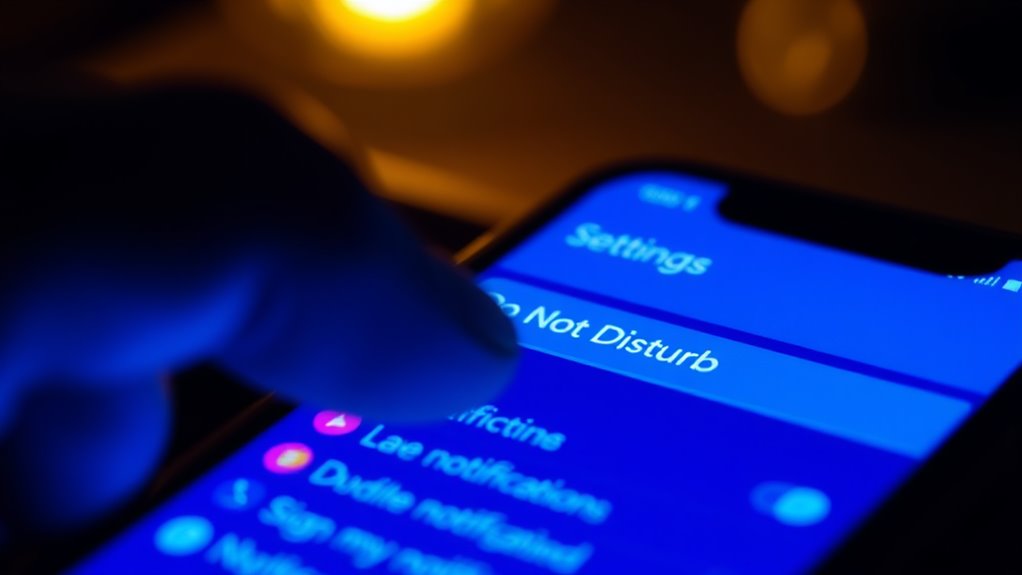
Although many people overlook the importance of notifications, customizing them can greatly enhance focus. By implementing notification prioritization, individuals can choose which alerts deserve their immediate attention. This way, less critical notifications won’t distract them during important tasks. Focused modes on smartphones offer another layer of control, enabling users to silence non-essential notifications during work hours or study sessions. When users take the time to arrange their notifications thoughtfully, they create an environment that promotes productivity. It’s about making technology work for them, not against them. As they refine these settings, they might find their concentration improves, leading to greater efficiency and satisfaction in both personal and professional endeavors. Customizing notifications is a simple yet impactful strategy for better focus.
Enabling Dark Mode for Eye Comfort
As many users spend long hours on their phones, enabling dark mode can considerably improve eye comfort. This feature not only minimizes glare but can furthermore extend battery life. Let’s explore the benefits of dark mode and how to activate it on various devices.
Benefits of Dark Mode
How can a simple toggle make a significant difference in eye comfort? By enabling dark mode, users can experience several dark mode benefits that improve their overall device interaction. One of the primary advantages is eye strain reduction, especially in low-light environments. The softer contrast of light text on a dark background minimizes glare, making it easier for the eyes to focus and reducing fatigue during prolonged use. This is particularly beneficial for those who spend hours scrolling through social media or reading articles. In addition, dark mode can help conserve battery life on devices with OLED screens, providing an added bonus. Overall, adopting dark mode can create a more comfortable and enjoyable user experience, especially for those sensitive to bright screens.
How to Activate
To enable dark mode and improve eye comfort, users can easily navigate through their device’s settings. This feature reduces eye strain, especially in low-light environments. Here’s how to activate it:
- Open Settings: Locate the settings app on your device.
- Display Options: Tap on the ‘Display’ or ‘Screen’ section, where users can find the dark mode option.
- Activate Dark Mode: Toggle the switch to enable dark mode. For added convenience, users can additionally activate voice commands or enable gestures to switch modes quickly in the future.
Managing App Permissions for Enhanced Privacy

Managing app permissions is essential for anyone looking to improve their privacy. Users can limit location access and control background data to protect their personal information. By taking these simple steps, they can greatly reduce the risk of unwanted data exposure.
Limit Location Access
Many smartphone users overlook a crucial aspect of their device’s privacy settings: location access. By managing app permissions effectively, individuals can improve their privacy controls and limit unwanted location sharing. This feature allows users to decide which apps can access their location and when they can do so.
Here are some tips to help manage location access:
- Set permissions: Choose “While Using the App” for apps that don’t need constant access.
- Review app settings: Regularly check which apps have location access and revoke permissions as necessary.
- Use system settings: Access the device’s location settings to enable or disable location services entirely.
These steps help users regain control over their personal information and maintain their privacy.
Control Background Data
Though it’s easy to overlook, controlling background data usage is essential for preserving privacy and optimizing device performance. Many apps constantly engage in background monitoring, which can lead to increased data consumption and potential privacy breaches. By implementing data restrictions, users can limit which apps are allowed to access data when they’re not actively in use. This not only conserves battery life but likewise minimizes the risk of unwanted data sharing. To manage these settings, users should navigate to their device’s data usage section, where they can toggle background data access for individual apps. Taking these simple steps can greatly improve a user’s control over their privacy and boost overall device efficiency.
Utilizing Battery Saver Modes Effectively
As smartphones have become essential tools in daily life, their battery life can often fall short during critical moments. To maximize battery efficiency, users can utilize built-in battery saver modes effectively. These modes not only limit resource-heavy apps but likewise help in managing background processes, ensuring the phone lasts longer.
Here are some battery optimization tips to take into account:
- Activate battery saver mode before heading out for extended periods.
- Identify and restrict apps that consume excessive battery in the background.
- Adjust screen brightness and timeout settings to conserve energy.
Organizing Your Home Screen for Efficiency
Battery optimization isn’t just about saving energy; it’s also about enhancing overall user experience. One overlooked aspect of this is organizing the home screen for efficiency. Users can streamline their daily tasks by focusing on widget organization and folder creation.
Here’s a simple guide to help:
| Widget Type | Recommended Placement | Frequency of Use |
|---|---|---|
| Weather Widget | Top Left Corner | Daily |
| Calendar Widget | Center | Weekly |
| News App Folder | Bottom Right Corner | Daily |
Setting Up Emergency SOS Features
In the domain of personal safety, setting up Emergency SOS features on a smartphone can be crucial for peace of mind. These features allow quick access to emergency contacts and can send SOS alerts with just a few taps. By configuring this option, users can guarantee that help is just a moment away in critical situations.
- Add emergency contacts: Include trusted friends or family for immediate alerts.
- Customize SOS alerts: Tailor the message sent to contacts to provide important information.
- Practice the feature: Familiarize oneself with how to activate it in an emergency.
Taking the time to set up these features can make all the difference when it matters most.
Exploring Accessibility Options for Better Usability
Even though many users appreciate the standard features of their smartphones, exploring accessibility options can greatly improve usability for individuals with varying needs. For instance, voice commands enable hands-free control, allowing users to send messages, make calls, or open apps without tapping the screen. This is particularly beneficial for those with mobility challenges. Furthermore, the text to speech feature reads aloud text on the screen, making information more accessible for users with visual impairments. By adjusting settings like font size and contrast, users can further improve their experience. These overlooked features not only promote inclusivity but also empower users to interact with their devices more effectively, ensuring everyone can benefit from the technology at their fingertips.
Frequently Asked Questions
How Can I Reset My Phone Settings to Default?
To reset phone settings to default, he should look for the reset options in the settings menu. Most devices offer a factory reset option, which restores the phone to its original state. He’ll need to navigate to the “System” or “General Management” section, select “Reset,” and then choose “Factory Data Reset.” It’s crucial to back up any important data, as this process erases everything on the device, returning it to the way it was when purchased.
What Is the Best Way to Back up My Phone Data?
When considering the best way to back up phone data, it’s crucial to explore cloud storage options. Many services offer automatic backups, ensuring data’s always secure. Furthermore, users should look for platforms that provide data encryption, safeguarding their information from unauthorized access. By using a combination of cloud storage and encryption, one can confidently protect important photos, contacts, and documents, making sure they’re easily retrievable in case of device loss or damage.
How Do I Find Hidden Apps on My Phone?
When trying to find hidden apps on a phone, he can start by accessing the app manager in the settings. Many devices allow users to hide apps from the main screen, so checking the app manager might reveal those hidden apps. He should look for options like “Show hidden apps” or similar phrases. Once found, he can decide whether to keep them hidden or bring them back to the home screen for easy access.
Can I Track My Phone if It’s Lost?
When she realized her phone was missing, panic set in like it was the end of the world. But she remembered that most smartphones have phone tracking capabilities through location services. By accessing her device’s tracking feature, she could see its last known location. With these tools, she found a way to retrieve her lost phone, turning a moment of despair into relief and triumph, all thanks to modern technology.
How Do I Update My Phone’s Software Manually?
To update a phone’s software manually, one must navigate to the device’s settings. In the settings menu, they should find the “Software Update” option. Tapping it will prompt the phone to check for available updates. If an update’s available, they’ll need to follow the on-screen instructions to complete the manual process. It’s crucial to have a stable internet connection and sufficient battery life before starting the software update to avoid interruptions.